Dodolyst
We’re your premier destination for expert insights on tech, finance, analytics, lifestyle, and more. Explore a wealth of knowledge and unlock your full potential with our curated resources and articles
Dodolyst
We’re your premier destination for expert insights on tech, finance, analytics, lifestyle, and more. Explore a wealth of knowledge and unlock your full potential with our curated resources and articles

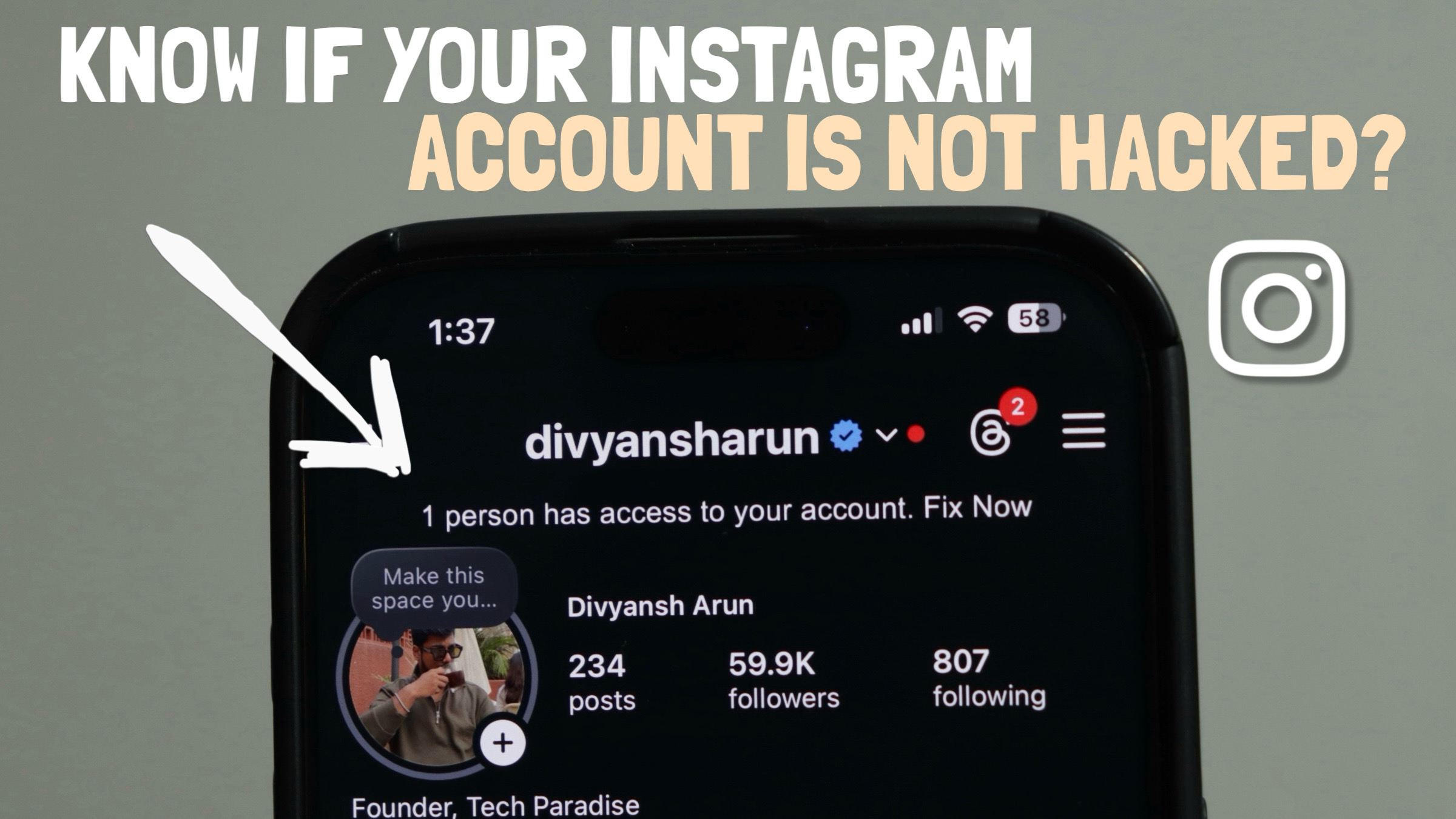
Have you ever had that sudden thought — what if someone else is using my Instagram account?
Maybe your account feels different, your password was shared with someone earlier, or you’re just worried about your account security.
The good news is: Instagram gives you clear tools to check this — and you can secure your account without stress.
In this guide, you’ll learn how to check if your Instagram account is hacked or being used by someone else, and how to fix it immediately.
Before we go into the steps, watch out for these red flags:
Login alerts you didn’t trigger
New devices or locations you don’t recognize
Password change emails you never requested
Sudden logout from your own account
Changes to email or phone number
If you notice any of these, follow the steps below.
Instagram allows you to see all devices logged into your account.
Open the Instagram app
Go to your profile
Tap the three lines (☰) in the top-right corner
Open Accounts Center
Tap Password and Security
Select Where You’re Logged In
Here, Instagram shows:
Device type
Location
Login time
👉 If you see an unknown device or location, it means someone else might be using your account.
Instagram sends emails whenever:
A new device logs in
Someone tries to change your password
Your email or phone number is updated
Open your email inbox
Search for emails from Instagram
Check the activity mentioned
🚨 If you see an email you didn’t trigger, change your Instagram password immediately.
Instagram lets you log out remotely from suspicious devices.
Go back to Where You’re Logged In
Find the unknown device
Tap Log Out
Immediately change your password
🔗 Reset Instagram Password (Official Link):
https://www.instagram.com/accounts/password/reset/
This ensures no one can log back in using old credentials.
Two-Factor Authentication is one of the strongest protections for your Instagram account.
Even if someone gets your password, they cannot log in without a verification code.
Go to Accounts Center
Open Password and Security
Tap Two-Factor Authentication
Choose:
SMS
Authenticator app (like Google Authenticator)
✅ This adds an extra security layer to your account.
Instagram also provides a Security Checkup feature.
Go to Accounts Center
Open Password and Security
Tap Security Checkup
Verify:
Email address
Phone number
⚠️ These are your recovery options.
If someone changes them, they can lock you out of your own account.
Always keep them updated.
Follow these best practices:
Never share your password
Use a strong, unique password
Enable Two-Factor Authentication
Check login activity regularly
Monitor Instagram security emails
By checking login activity, monitoring your emails, logging out unknown devices, and enabling two-factor authentication, you can be confident that your Instagram account is safe and only yours.
A few minutes of checking today can save you from losing your account tomorrow.